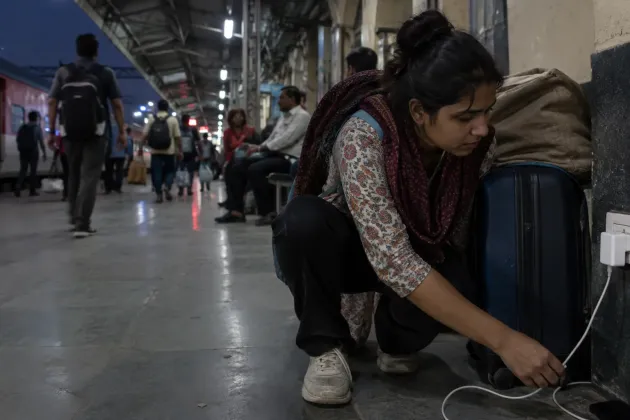
You are at a hostel desk after dinner, trying to finish a client reel before the corridor goes quiet. The footage is on your mid-range Android phone, the charger is across the room, and the storage bar is already uncomfortably full. Adobe Premiere is now on Android, with free, watermark-free export up to 4K.
That sounds like the expensive problem has disappeared. It has not. The app may be free, but the phone still pays in free space, sustained processing, battery and data. Your decision is simple: edit at a lighter resolution, run a disciplined 4K workflow, or move the heavy work off the phone.
The free export moves the cost
A mobile edit needs more room than the source clips alone suggest. You keep the originals, create a working project, and then write a finished export. An editor may also build thumbnails, audio waveforms, previews or temporary files while you work. None of those is a subscription charge, but all of them compete for the same storage used by WhatsApp media, offline downloads and the photos you have not backed up.
The dangerous moment is not import. It is the final stretch. A project can open normally while there is enough room for the timeline, then struggle when the export needs a fresh output file. If you delete the originals too early, you lose your clean fallback. If you keep everything until delivery, the phone needs breathing room for several versions of the same story.
This is why the word free needs a footnote in your head. Adobe is not charging you to export, but storage pressure can still force a cleanup, an offload or a cloud transfer at the worst possible time. The bill is inconvenience first. It becomes money only if you respond by buying storage, extra data or another device.
Do not begin by asking how much the app costs. Ask whether the complete workflow fits: source, working files, export and a safety margin. That leads to the more uncomfortable question: should you use 4K just because the button is available?
Why 4K is the tempting wrong default
The listing's 4K option is real, but the counter-intuitive choice is to ignore it unless the destination needs it. Higher-resolution video usually asks more of storage and processing than a lighter export. On a phone that is already juggling background apps, charging and a warm Indian room, the fanciest setting can be the least reliable one.
Creators often keep the highest setting because it feels like preserving quality. That instinct makes sense. It is also incomplete. Quality that misses the upload window, overheats the phone midway or leaves no room for a corrected export is not useful quality. Reliability is part of the deliverable.
A lighter workflow is the sensible default for quick social posts, rough cuts and approvals. Keep the original clips somewhere safe if you may need a higher-quality master later. You can then edit and review without treating every draft as the final archive.
Choose 4K when the client, platform or later crop genuinely benefits from it and when you can reserve the phone for the job. Close unnecessary apps, start with a comfortable battery level, connect to stable power when practical, and avoid direct sun or a hot parked car. These are boring precautions. Boring is excellent when an export has already taken most of your evening.
The point is not that a mid-range phone cannot edit high-resolution video. It is that the export label tells you what the software permits, not how comfortably your particular phone will finish a long, layered project. The next check is therefore the phone, not the feature list.
Check the phone before you trust the timeline
The Google Play listing says the app needs at least 5GB of RAM to download. Treat that as an entry requirement, not a performance promise. RAM does not reveal how much storage is free, how fast that storage behaves when nearly full, how the phone handles sustained heat, or how much battery health has declined since you bought it.
Before importing, look at free storage and then make a conservative plan. Leave the originals intact until the finished video has been checked. Keep only the drafts you still need. If the phone is shared with family or also carries essential UPI, work and travel apps, do not let an edit crowd out the device's everyday job.
Battery deserves the same respect. Editing is interactive work; exporting is a sustained task. Both can make the processor and storage work continuously, so a phone may warm up and drain faster than it does during ordinary scrolling. A thick case, a hot room and charging at the same time can add to that discomfort. Pause if the device becomes unusually hot rather than gambling the project on one more attempt.
Then check the network plan. The app listing allows assets to come from the phone or a cloud provider. A cloud-first project can save local organisation, but moving original footage up and down still uses data. On mobile data, repeated transfers can become the real price of a supposedly free edit.
Once those limits are visible, the workflow choice stops being vague. You can match the job to the phone instead of hoping the phone matches the marketing.
Choose the workflow that protects the deadline
The lighter phone-first workflow is the default for short social edits, approvals and fast turnarounds. Import only the selects, edit at a modest delivery setting, and keep the source archive elsewhere. This minimises duplicate media and gives the phone a better chance of finishing without a frantic deletion round.
The disciplined 4K workflow is for a final master that genuinely needs the extra detail. Begin with ample free space, stable power and local copies of everything important. Finish the cut before adding every effect you can find. Export once for review, correct deliberately, then make the delivery version. Endless near-identical drafts are storage clutter wearing creative clothes.
The off-phone workflow is the honest answer when the project is long, heavily layered or too important to risk on the only phone in the household. Use the handset for selects, notes or a rough assembly, then move the material to a computer or external storage for the heavy finish. Free mobile software does not require you to prove that every job belongs on mobile.
Cloud and AI features need a separate budget decision. The store description says payment is reserved for Firefly generative AI credits, while device and cloud imports are supported. That means the core edit can stay free, yet an AI-heavy or cloud-heavy habit can still create direct or data costs. Use those tools because they solve a specific problem, not because they sit beside the timeline.
There is no universal winner among these paths. The lighter route protects speed, the 4K route protects a demanding master, and the off-phone route protects the project from the handset's limits. Pick the thing you most need to protect.
What to actually do
You are back at that hostel desk, but the decision is no longer “Can this app export 4K?” The reel is due soon, the phone is crowded, and the safer choice is a lighter phone-first edit while the original clips stay backed up for a later master.
Make the choice before import, not after the storage warning arrives. Then follow a small routine:
- Check free storage, battery level and available data before opening the project.
- Import selects instead of every take when the deadline matters more than keeping options open.
- Use 4K only when the delivery or later crop clearly needs it.
- Keep originals until you have watched the finished export from start to end.
- Move a long or layered project off the phone when reliability matters more than convenience.