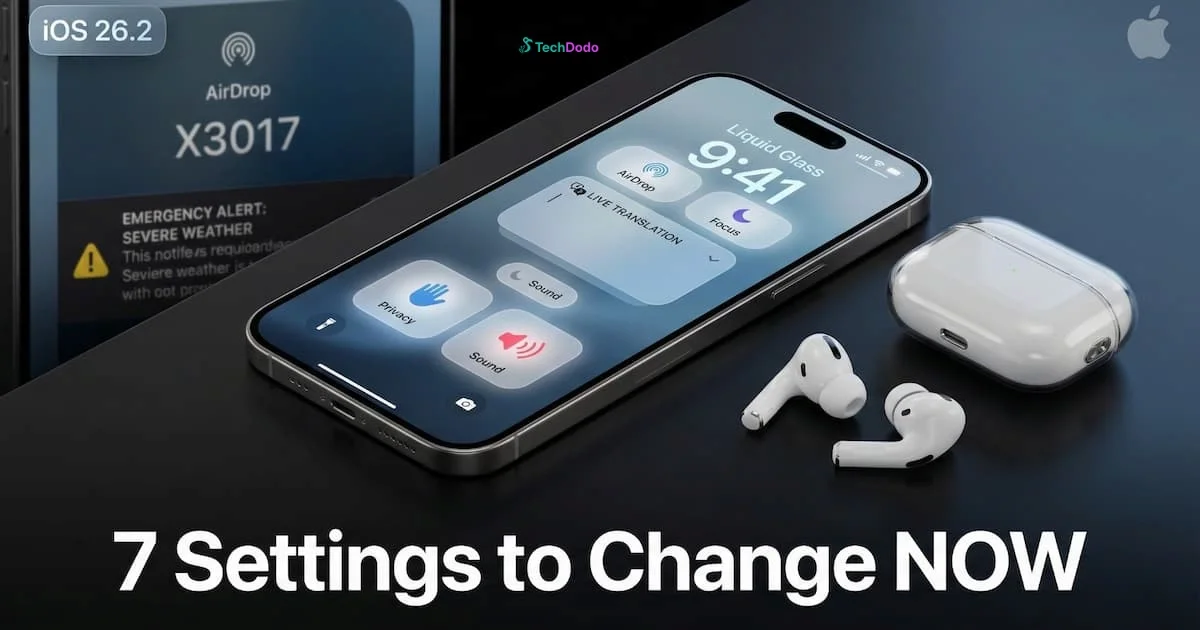
Why iOS 26.2 Deserves Your Attention (And Caution)
Apple released iOS 26.2 on December 12, 2025, and while the official changelog reads like a modest quality-of-life update, the reality is more complex. Buried beneath new Liquid Glass customisation options and podcast features are 25 security patches, two actively exploited vulnerabilities, and a sneaky prompt that could strip away your control over future updates.
This isn't just another point release. It's the kind of update that rewards careful attention and punishes the tap-happy.
Here's exactly what you need to check—and change—after updating.
1. Check Your Automatic Updates Settings (Critical)
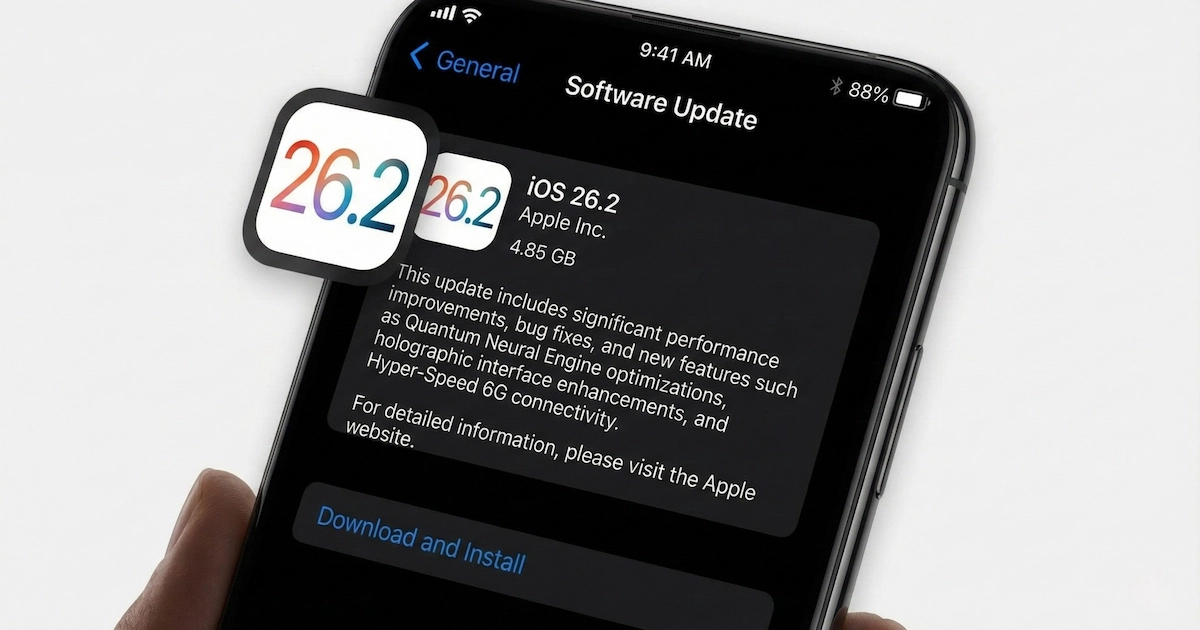
Path: Settings → General → Software Update → Automatic Updates
Here's what Apple doesn't advertise: iOS 26.2's installation sequence includes a deceptive prompt that can silently re-enable automatic software updates—even if you previously disabled them.
The post-update screen displays a prominent blue "Continue" button. Tap it without reading, and you've just agreed to let Apple automatically download and install future updates. The alternative option—"Only Download Automatically"—is styled to look like the less important choice.
MacRumors reported that this dark pattern has caught numerous users off guard. If your iPhone has ever mysteriously updated overnight when you didn't initiate it, this is likely why.
What to do: Open Settings → General → Software Update → Automatic Updates. Toggle off "Install iOS Updates" if you prefer manual control. You can keep "Download iOS Updates" enabled to have updates ready without automatic installation.
Many enterprise users and professionals deliberately delay updates to avoid potential bugs. This setting respects that choice—Apple's prompt does not.
2. Configure the New AirDrop Security Codes
Path: Settings → General → AirDrop → Manage Known AirDrop Contacts
iOS 26.2 fundamentally changes how AirDrop handles strangers. Previously, your only options were "Contacts Only," "Everyone for 10 Minutes," or "Receiving Off." The first was too restrictive for legitimate quick shares; the second left you vulnerable to AirDrop spam—those unsolicited photos from random strangers on trains and planes.
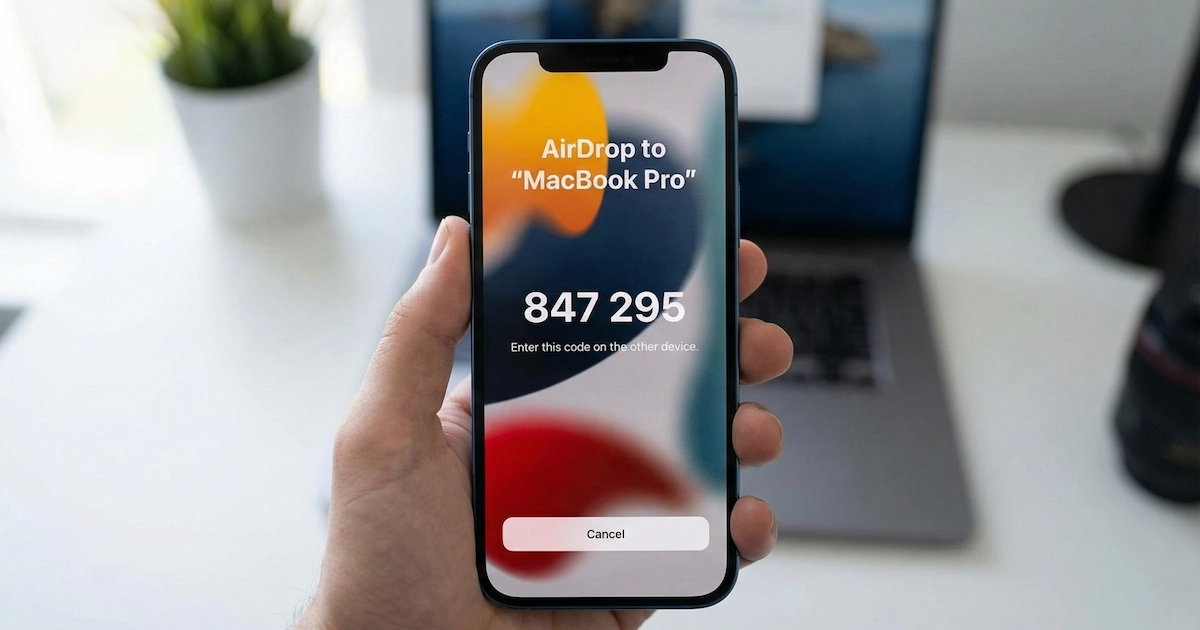
Apple's solution is AirDrop Codes: a one-time verification system that creates temporary trusted connections.
When someone not in your contacts attempts to send you a file, your iPhone displays a unique code. The sender must enter this code on their device to complete the transfer. Once verified, that device remains "known" to your iPhone for 30 days—no code required for subsequent transfers.
What to do: This feature works automatically, but you should familiarise yourself with the management interface. Navigate to Settings → General → AirDrop → Manage Known AirDrop Contacts to see and revoke temporary connections. If you shared a code with someone you no longer want receiving access, you can remove them here.
This is particularly valuable for conference attendees, workshop participants, and anyone who frequently exchanges files with acquaintances who aren't saved contacts.
3. Enable Enhanced Safety Alerts (US Users)
Path: Settings → Notifications → Government Alerts
iOS 26.2 introduces Enhanced Safety Alerts—a significant upgrade to Apple's emergency notification system. Instead of simple text-based alerts, these new notifications include interactive maps showing affected areas and direct links to official safety guidance.
Apple describes these as covering "imminent threats such as floods, natural disasters, and other emergencies." The enhanced format provides context that basic alerts lack—you'll see exactly where danger zones are and receive actionable guidance rather than generic warnings.
What to do: Navigate to Settings → Notifications → scroll to Government Alerts. Ensure "Emergency Alerts" and "Public Safety Alerts" are enabled. The Enhanced Safety Alerts feature is automatic once the underlying notification permissions are active.
Regional Note: As of December 2025, Enhanced Safety Alerts are available only in the United States. Apple has not announced expansion timelines for India, Europe, or other regions.
4. Customise Screen Flash Notifications
Path: Settings → Accessibility → Audio/Visual → Flash for Alerts
iOS 26.2 expands the Flash for Alerts accessibility feature with a new option: screen flash notifications. Previously, this setting only triggered the rear LED flash when notifications arrived. Now, your entire display can flash—useful in noisy environments or for users with hearing difficulties.
What to do: Navigate to Settings → Accessibility → Audio/Visual → Flash for Alerts. You'll now see separate toggles for "LED Flash for Alerts" (rear camera flash) and "Flash Screen for Alerts" (display flash).
Enable the screen flash option if you frequently miss notifications in loud settings. Disable both if you find the flashing distracting or if you're photosensitive.
5. Update Your Carrier Settings
Path: Settings → General → About (wait for prompt)
This one flies under the radar because it requires no action to check—but failing to update carrier settings can result in degraded network performance, especially on newer 5G networks.
iOS 26.2 includes updated carrier bundles that improve call quality, data speeds, and connectivity stability. These updates are separate from the main iOS update and require a manual trigger.
What to do: Open Settings → General → About. Wait 10-15 seconds on this screen. If a carrier settings update is available, a prompt will appear asking if you want to install it. Tap "Update."
Users in India on Jio, Airtel, or Vi networks should particularly check this—carrier bundle updates often include optimisations for regional network infrastructure.
6. Set Up Live Translation for AirPods (EU Users)
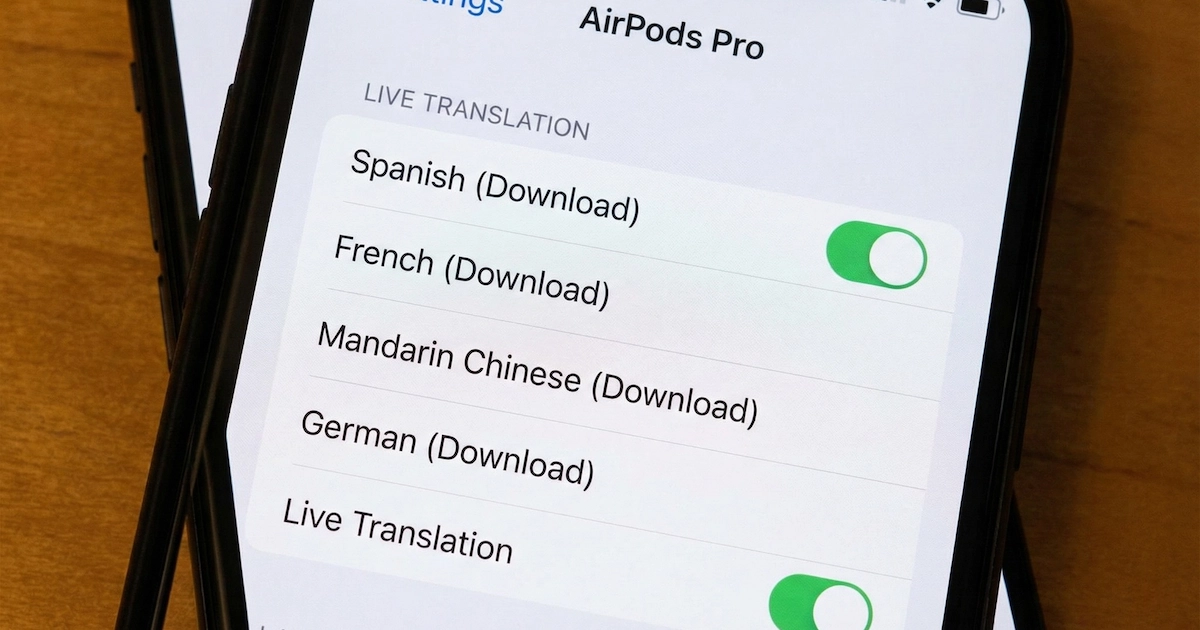
Path: Settings → [Your AirPods] → Translation → Languages
One of iOS 26.2's headline features for European users is the expansion of Live Translation with AirPods. This Apple Intelligence-powered feature was previously restricted outside the EU due to Digital Markets Act regulatory uncertainty. That's now resolved.
Compatible AirPods—AirPods Pro 2, AirPods Pro 3, and AirPods 4 with Active Noise Cancellation—can now provide real-time translation directly in your ears during face-to-face conversations.
Supported Languages: English (UK/US), French, German, Italian, Spanish, Portuguese (Brazil), Japanese, Korean, and Chinese (Simplified/Traditional Mandarin).
What to do:
- Ensure your AirPods firmware is current (connect them and leave them charging near your iPhone)
- Open Settings → [Your AirPods name] → Translation → Languages
- Download the languages you need—both the language you speak AND the language you want translated
- To start translation: Open the Translate app → tap "Live" → select languages → tap "Start Translation." Alternatively, press and hold both AirPod stems simultaneously.
Important: This feature requires Apple Intelligence, meaning iPhone 15 Pro or newer. Users in the EU whose Apple Account region is also set to an EU country can now access this feature—a restriction that didn't apply in other regions.
7. Review the Passwords App's New Exclusion List
Path: Settings → Apps → Passwords → Show Excluded Websites
iOS 26.2 adds a useful but buried feature to the Passwords app: visibility into websites where you've chosen not to save passwords.
Every time you decline a "Save Password?" prompt, that website gets added to an exclusion list. Previously, this list was invisible. Now you can review it—and remove sites if you've changed your mind about saving credentials there.
What to do: Navigate to Settings → Apps → Passwords → Show Excluded Websites. Review the list. Swipe left on any entry to remove it, which will prompt the save dialog to appear again next time you log into that site.
This is particularly useful if you accidentally declined to save an important password or if you previously avoided saving banking credentials but now trust Apple's encryption enough to reconsider.
Bonus: What Else Changed
Beyond these critical settings, iOS 26.2 includes several quality-of-life improvements worth knowing:
Reminders with Alarms: Toggle the "Urgent" option when creating a reminder to have it trigger a full-screen alarm—not just a notification. These appear in blue (distinguishing them from Clock app alarms) and include snooze options plus Live Activity countdowns.
Liquid Glass Lock Screen Slider: The new customisation slider lets you adjust the clock's transparency from nearly clear to heavily frosted. Find it under Wallpaper → Customize Lock Screen.
Podcasts Auto-Chapters: Apple now generates chapter markers automatically for episodes that don't have them. You'll also see links to other podcasts mentioned in episodes and quick access to URLs referenced during playback.
Apple Music Offline Lyrics: Downloaded songs now include lyrics that work without an internet connection—including beat-synced animations.
Security Patches: iOS 26.2 addresses 25 vulnerabilities, including two WebKit flaws that Apple confirms were "actively exploited in extremely sophisticated attacks against specific targeted individuals." Update sooner rather than later.
The Bottom Line
iOS 26.2 isn't flashy, but it's consequential. The security fixes alone make updating worthwhile—those actively exploited vulnerabilities weren't theoretical threats.
But the real value comes from understanding what's changed. Apple's automatic update prompt is borderline manipulative. AirDrop Codes solve a genuine problem most users didn't know they had. And features like Enhanced Safety Alerts and Live Translation represent meaningful capability improvements, even if they're geographically limited.
Take five minutes to walk through these settings. Your future self—the one who doesn't get woken up by a 3 AM automatic update—will thank you.
Last updated: December 19, 2025, 14:45 IST. We'll update this article when iOS 26.3 beta details emerge or if Apple addresses the automatic updates prompt controversy.